Customer Service
Users chat with support directly inside the app or mobile website, and agents reply from Telegram — no extra support software to install, and users do not need a Telegram account.
- One conversation per user: each user automatically gets their own topic in the Telegram support group — no mix-ups, with a traceable history
- One conversation across both clients: users see the same chat history in the app and on the mobile website, and can continue on another device
- Text and images: users can send text and screenshots; agents' text, emoji and images arrive in the app in real time
- Messages archived: all conversations are stored in the platform's own system and can be reviewed in the admin console at any time
Coverage
Currently the app and the mobile website (H5) are integrated. The PC website still uses its existing support window.
What users see
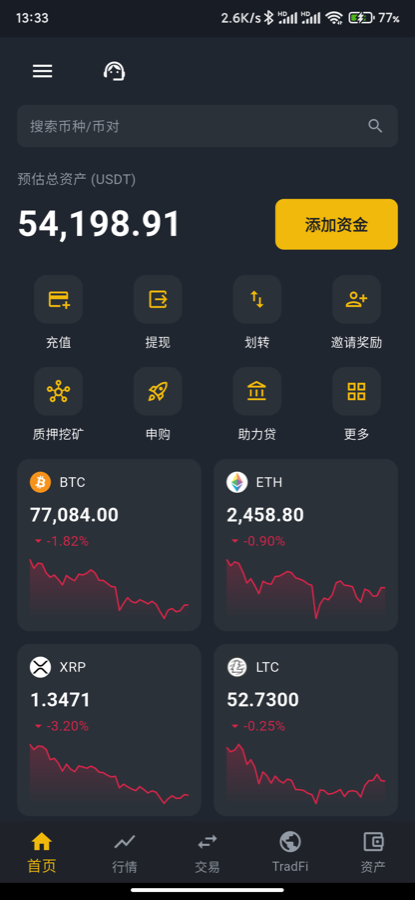
The headset icon at the top right of the home page; also reachable from "Live chat" on the "Me" page
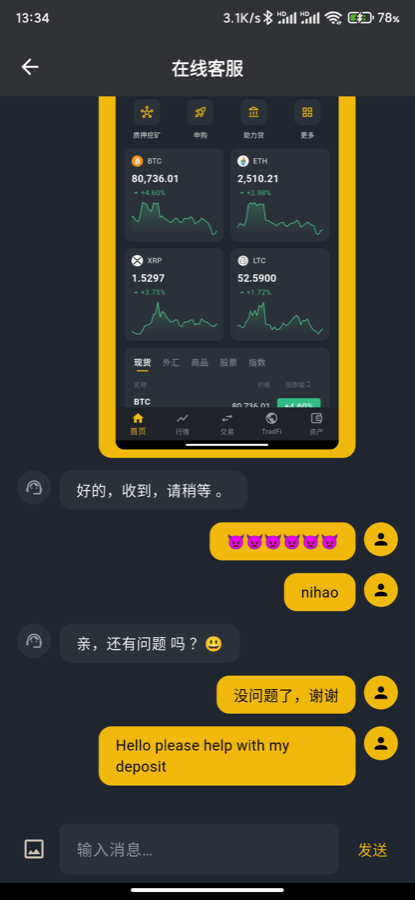
Agent on the left, user on the right; the button at the bottom left sends images
Users open an ordinary chat page; messages they send appear immediately in the agents' Telegram. When an agent replies, the app page shows it without refreshing.
What agents see
Agents only need a Telegram client (phone or desktop).
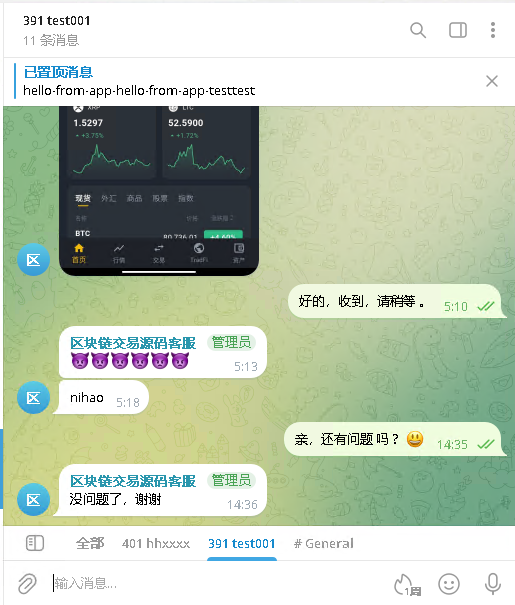
- When a user sends their first message, a new topic is created automatically in the support group, named "user ID account" (e.g.
391 test001), so you can tell at a glance who it is - Agents reply directly in that topic, and the reply is delivered to that user's app
- Agents can reply with text, emoji and images; voice messages and files are not forwarded to the app
- Several agents can be in the group at once — whoever is free picks it up
Privacy protection
Before user messages are forwarded to Telegram, sensitive information such as ID numbers, bank card numbers and phone numbers is automatically masked; the platform's own system keeps the original text, viewable in the admin console when needed.
Reviewing conversations in the admin console
The "Chat History" page in the admin console lets you look up conversations by user ID and view the full history (time, sender, content). It is a read-only page for evidence and review — replies to users are still made in Telegram.
Permission
This page must be granted separately to support / operations roles; accounts without the permission do not see the menu. For granting roles, see Admin Login & Permissions.
How to enable it
Enabling requires no engineering work; operators complete it in Telegram and the admin console. Follow the steps in order — none can be skipped.
Step 1: Create the support group and enable Topics
Create a new Telegram group, upgrade it to a supergroup in the group settings, and turn on Topics.
It must be a supergroup with Topics enabled
If you configure a private chat or an ordinary group, user messages cannot be delivered. This is the most common cause of a failed setup.
Step 2: Create a dedicated support bot
Create a new bot via Telegram's @BotFather and note its token.
Do not reuse the deposit/withdrawal alert bot
If the platform already uses a Telegram bot for deposit/withdrawal alerts, support must use a separate bot. A bot can only be used by one system; sharing makes the two sides steal each other's messages and neither receives everything.
Step 3: Add the bot to the group and grant permissions
Add the bot to the support group, make it an administrator, and in its admin rights explicitly tick "Manage Topics".
Making it admin is not enough
"Manage Topics" is a separate permission switch that is off by default. Without it, the bot cannot create topics for new users — the symptom is that nothing happens in the group after a user sends a message.
Step 4: Fill in the configuration in the admin console
Go to "Third-Party Configuration → Live chat" in the admin console and fill in:
| Setting | Description |
|---|---|
| Enable live chat | Master switch. When on, every support entry in the app / H5 uses this system |
| Support bot token | The token from step 2 |
| Support group ID | The ID of the group from step 1, usually starting with -100 |
| Callback URL | The address where the platform receives Telegram messages, provided by your technical team |
| Callback secret | A secret string used to verify where callbacks come from, provided by your technical team or set yourself |
On saving, the system registers the callback URL with Telegram automatically; only then do agents' replies in the group reach the app.
"Saved successfully" does not mean it is active
The system only registers the callback with Telegram when the switch is on and the token, callback URL and callback secret are all filled in. If any is missing, the page still says it saved successfully, but agents' replies will not reach the app. When troubleshooting, check these four first.
Step 5: Verify with a test account
- Open support in the app with a test account and send a message
- A new topic named after that account should appear in the support group immediately, containing the message
- Reply in the topic
- The app's chat page should show the reply within a second or two, without refreshing
Once all four steps pass, it is ready for use.
Turning it off or rolling back
Just turn off the "Enable live chat" switch. Once off:
- The support entries in the app and H5 fall back to the original external-link support (that configuration is still kept under "Support Settings" in the admin console and was not deleted)
- Existing conversation records are not lost and are available again once the switch is turned back on
After changing the configuration
As with other admin settings, app users must fully quit and reopen the app to receive the new switch state; the mobile website just needs a refresh.
FAQ
A user sent a message, but nothing appears in the support group?
Check in order:
- Is "Enable live chat" turned on in the admin console?
- Is the "Support group ID" a supergroup with Topics enabled? Using a private chat or ordinary group is the most common mistake
- Is the bot in the group, is it an administrator, and is "Manage Topics" explicitly ticked?
The user's message reaches the group, but agents' replies don't reach the app?
Messages get in but don't come back, so the problem is in the callback:
- Are both "Callback URL" and "Callback secret" filled in? (If either is missing, the system does not register the callback)
- Did you save again after filling them in? (Registration happens on save)
- Is the agent replying in the user's topic, rather than in the group's "General"?
An agent sent a voice message / file, but the user says they didn't get it?
Only text, emoji and images are forwarded for now. Voice messages and files are not delivered to the app; please use text or screenshots instead.
Can one user end up with several topics?
No. Each user has exactly one topic, whether they start from the app or the mobile website.